ACTIVITY LOG
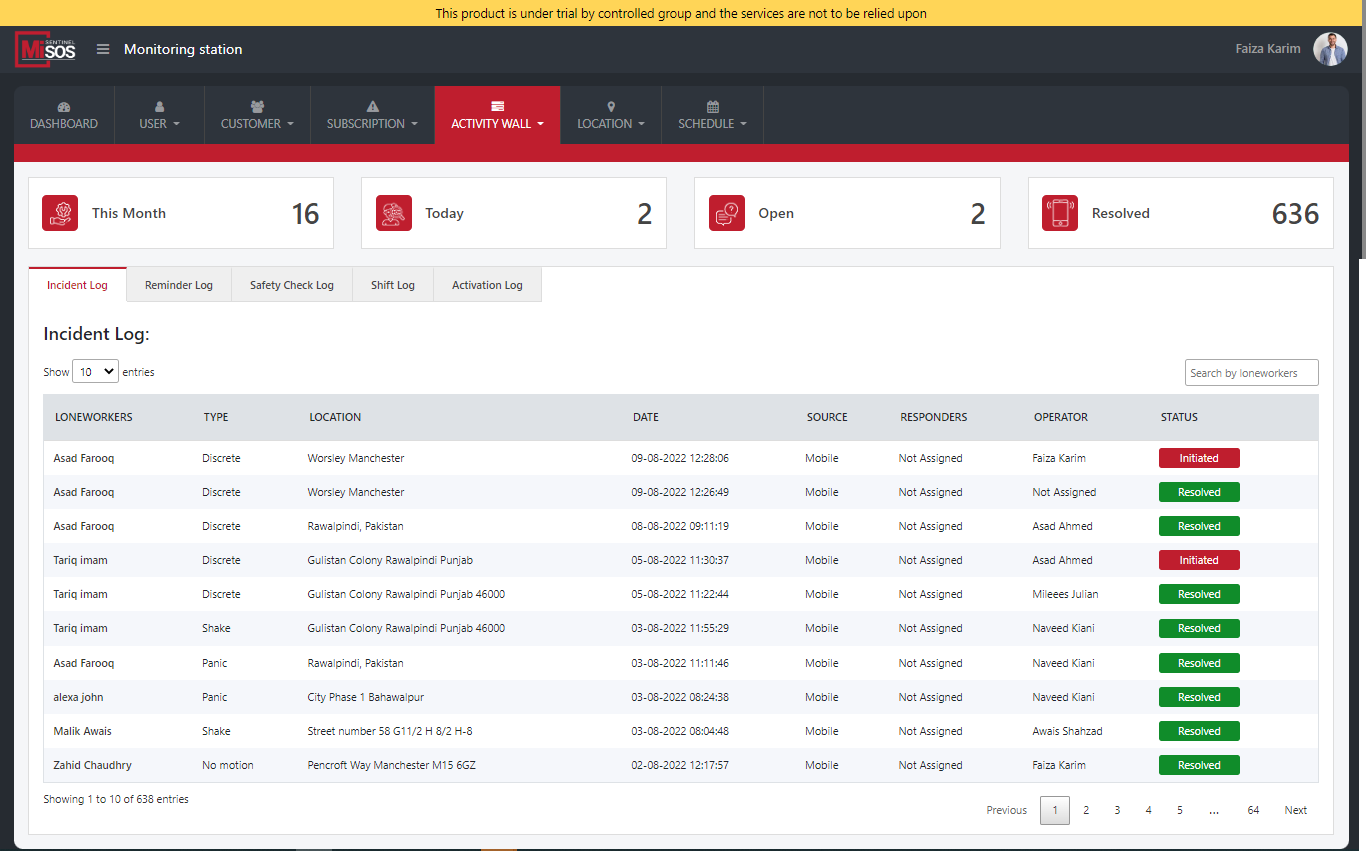
Via the activity wall, you can land on the activity log. This consists of on-going or present data at hand (of all clients). In case previous data is to be viewed (including the previous year or the previous month), all can be checked in this activity log, which is being carefully maintained at our end.
Click on activity log and one can easily view the: -
- Incident log
- Reminder log
- Safety check log
- Shift log as well as the
- Activation log
Incident log
Upon opening this log, any incidents including all companies and customers are displayed before us. The lone worker’s name is all clearly shown (any person who has reported incident at his/her site). Here, precisely the type of incident is put into writing in a table form. The time, date, location, source, responder, operator, and status are all mentioned in headings, which tells the exact status of the incident currently.
Resolved Incident
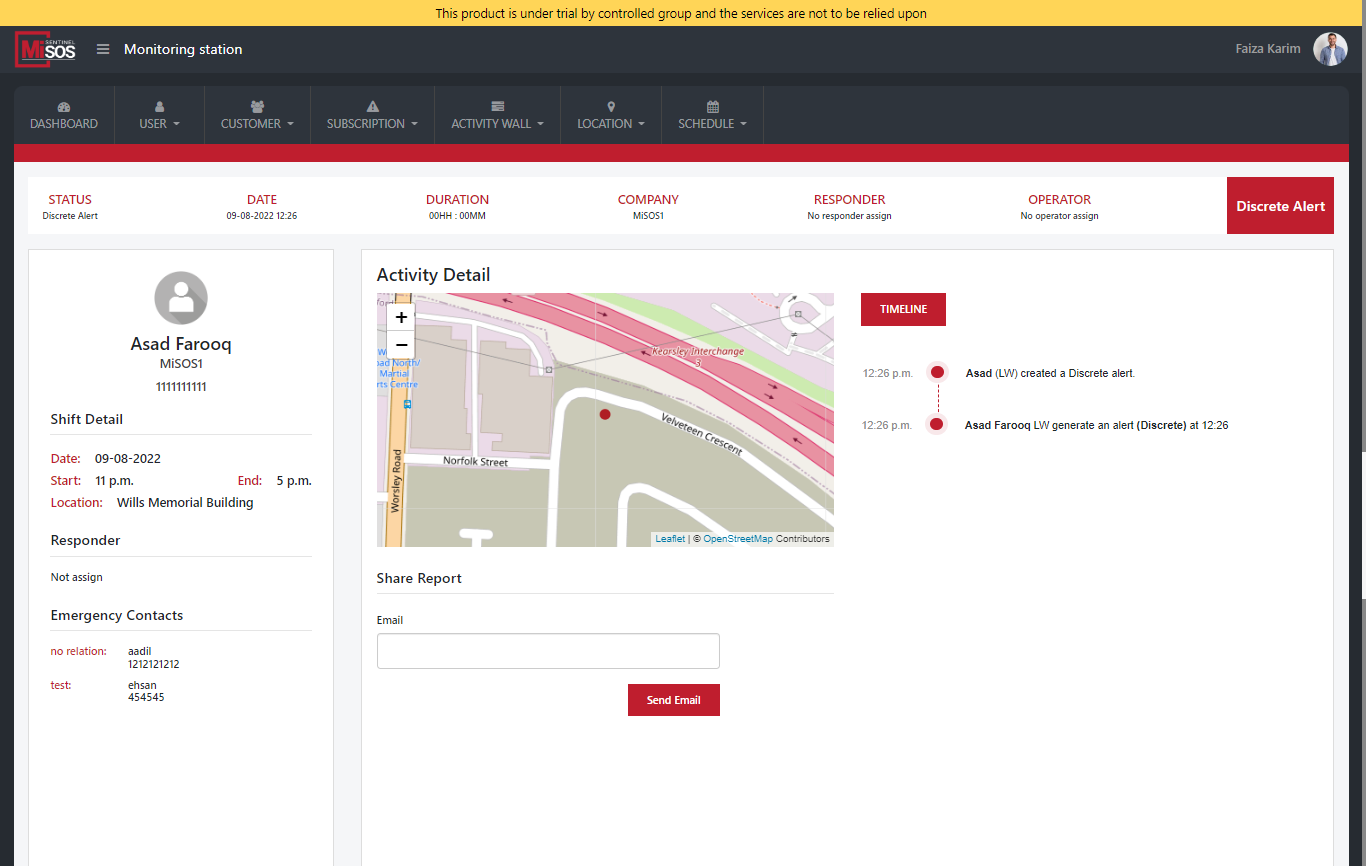
Any resolved incident means the incident was instantaneous taken care of. Upon clicking it, this is the section where you see the lone worker’s incident details. This shall have all significant details about that incident.
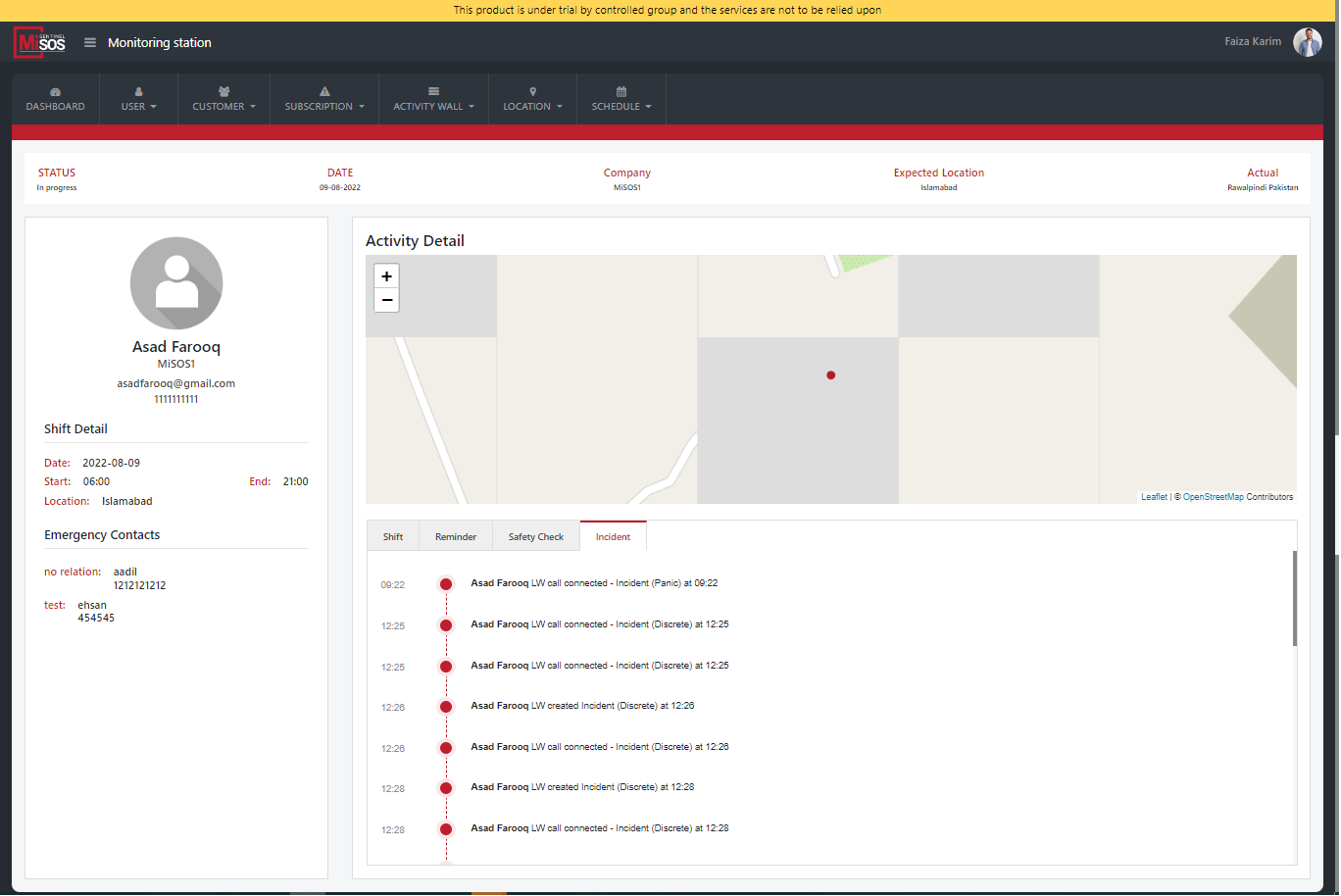
Status, date, duration, company, timeline, responder, type of incident along with the map where the incident occurred all can be seen once the resolved incident is clicked. No matter how many email addresses you type in, you can easily and promptly share the detailed report of that incident to all the IDs.
Reminder log
MiSOS sends scheduled reminders to lone workers in case their customer (while adding their respective employee) has agreed upon receiving reminders in every 15 minutes (or 30 minutes); to check whether they are safe, or in danger.
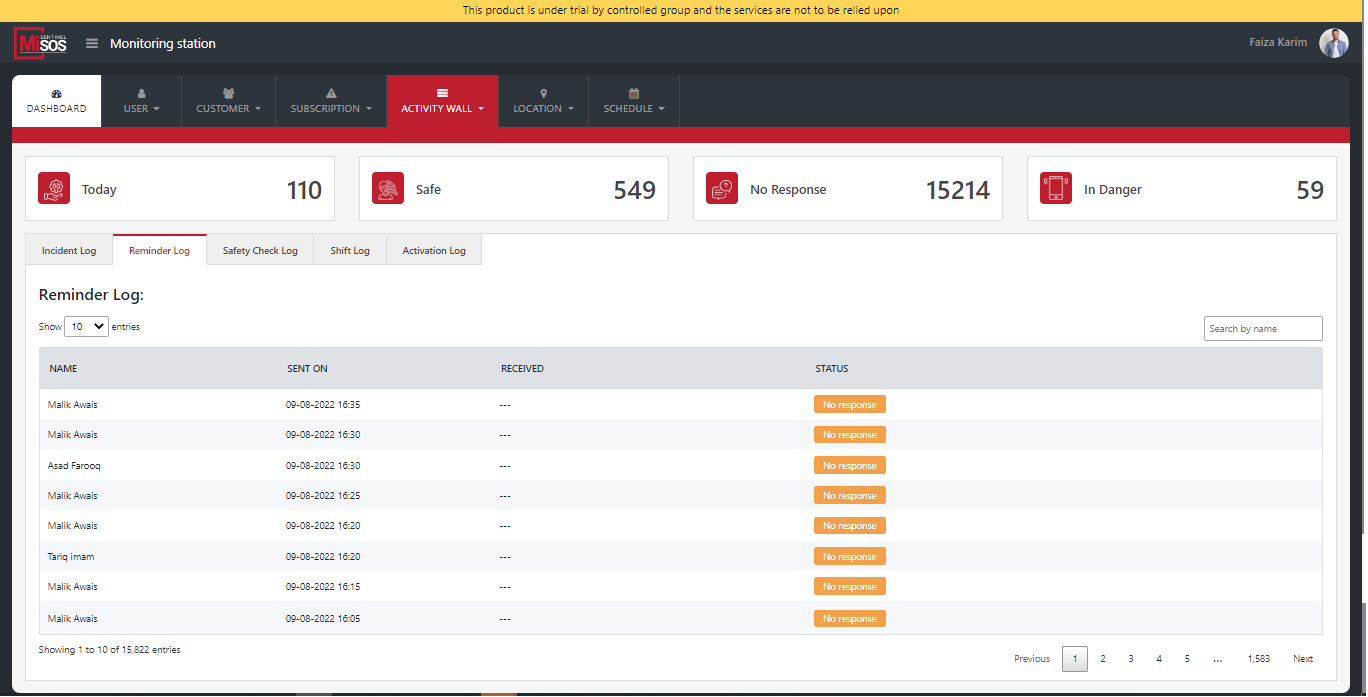
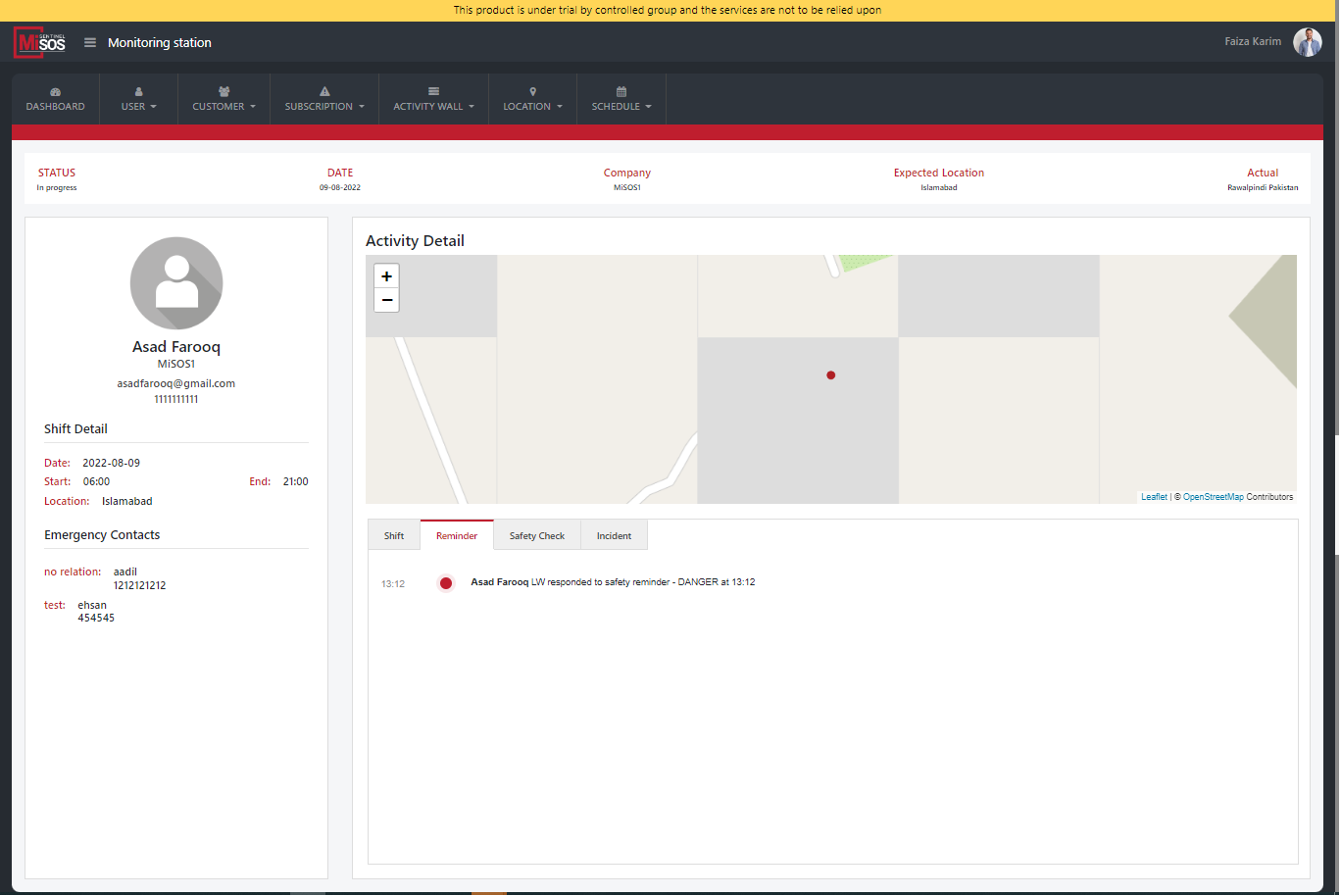
While adding the employees, this requirement is something which has been chosen by the customer. Thereby, reminders will be sent (at specific timings) and that worker’s reminder log will be kept at our end. Here, the name, time of sending the reminder, receiving it, date, and status all are clearly mentioned in the log.
Reminders that have been sent to clients include their name, status, timing as well as the response time of the reminder.
Reminder logs are always set by lone worker’s customers. It entirely depends upon the customer after how long a reminder must be sent to his lone worker; whether they are safe or if they are in any danger.
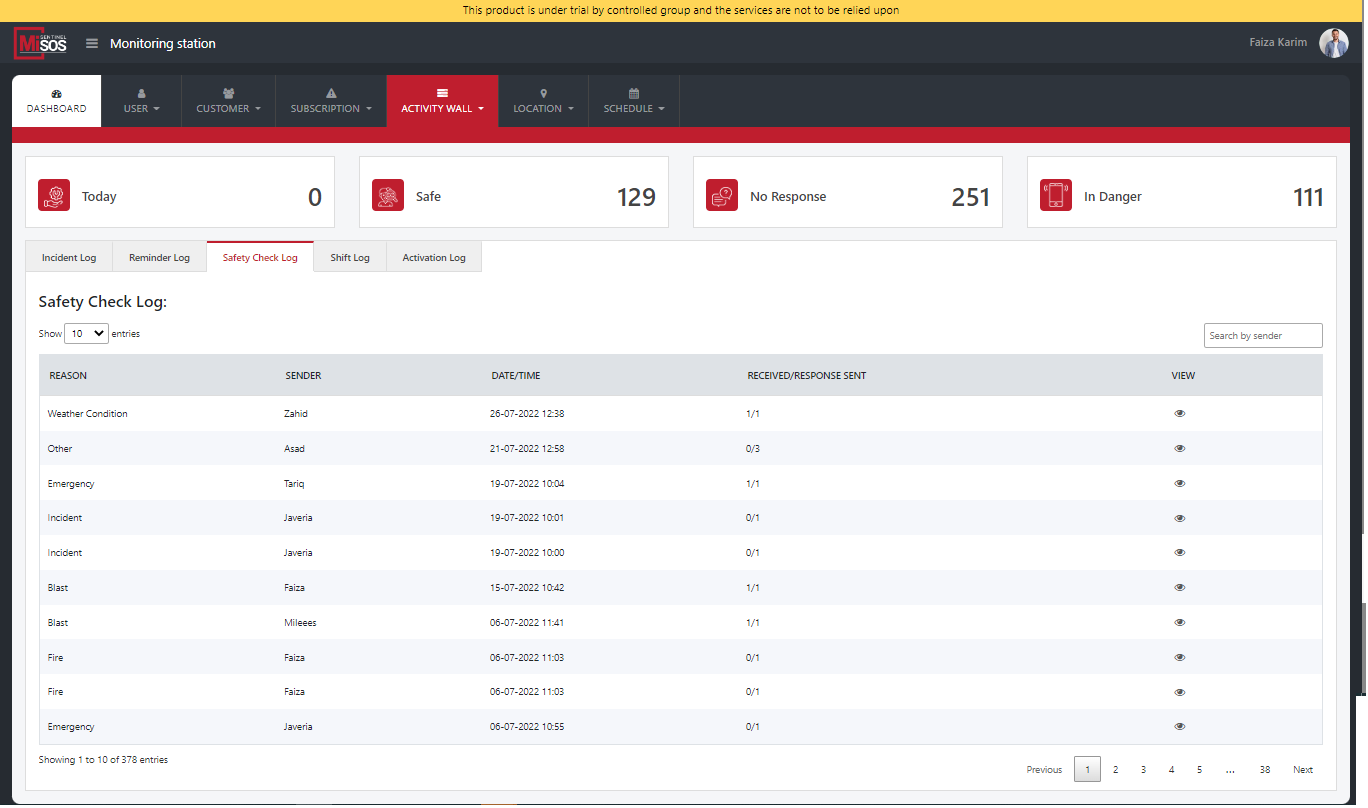
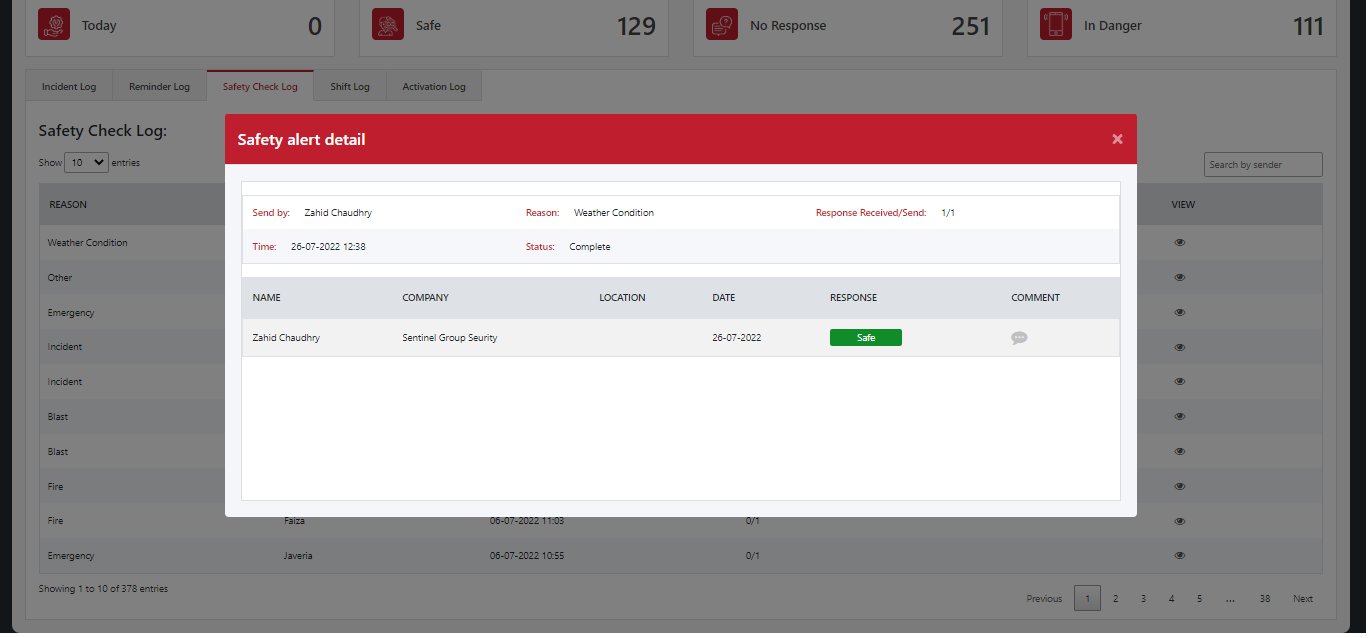
Significantly, it is to be cleared that the safety check log has no concern whatsoever with the customer but with the admin of the company. Thus, the staff in the admin is the person who can send the Safety Check to any customer as per need whereas Reminder is set by the customer for every lone worker. The response is either Safe, In Danger or No Response. In either case, the lone worker gets a call.
Safety check log
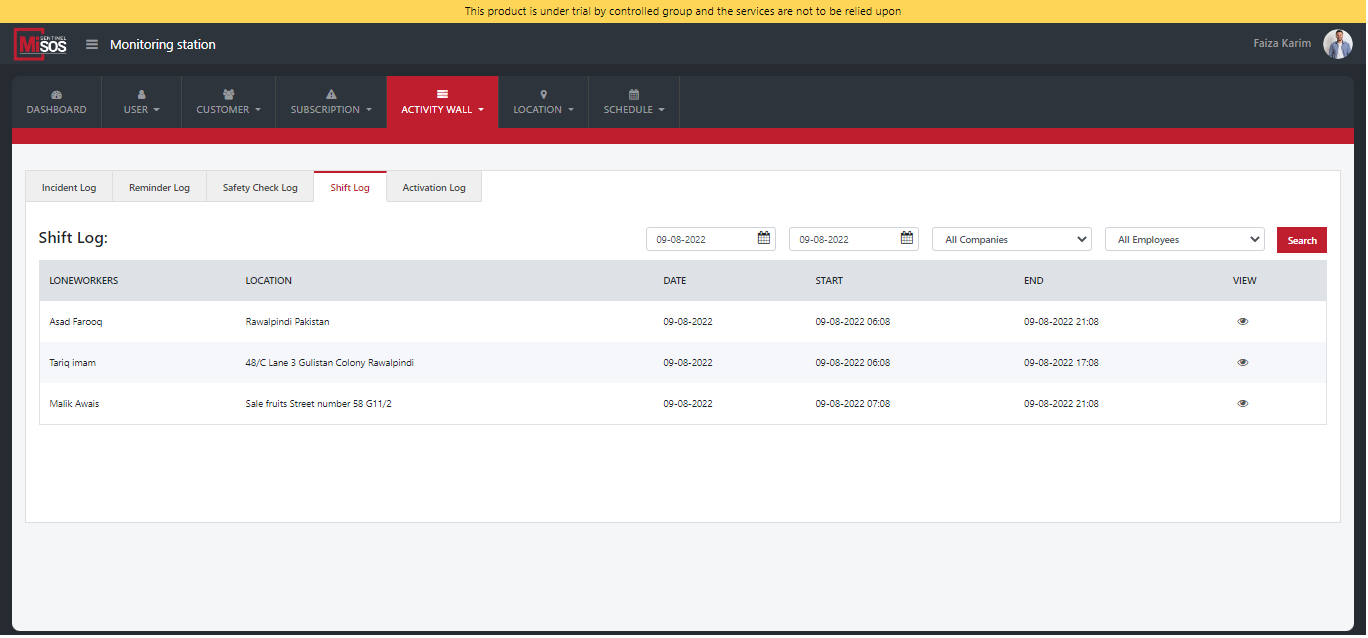
Here in shift log, to comprehend its function we shall select a date from last month till the current date in the calendar. Ask the app to fetch all the data for all the companies including all employees. Shift log would instantly follow that command. Commencing from the employee’s shift starting time till the end time for any number of days would be visible on this page.
Shift log
Here in shift log, to comprehend its function we shall select a date from last month till the current date in the calendar. Ask the app to fetch all the data for all the companies including all employees. Shift log would instantly follow that command. Commencing from the employee’s shift starting time till the end time for any number of days would be visible on this page.
Shift log
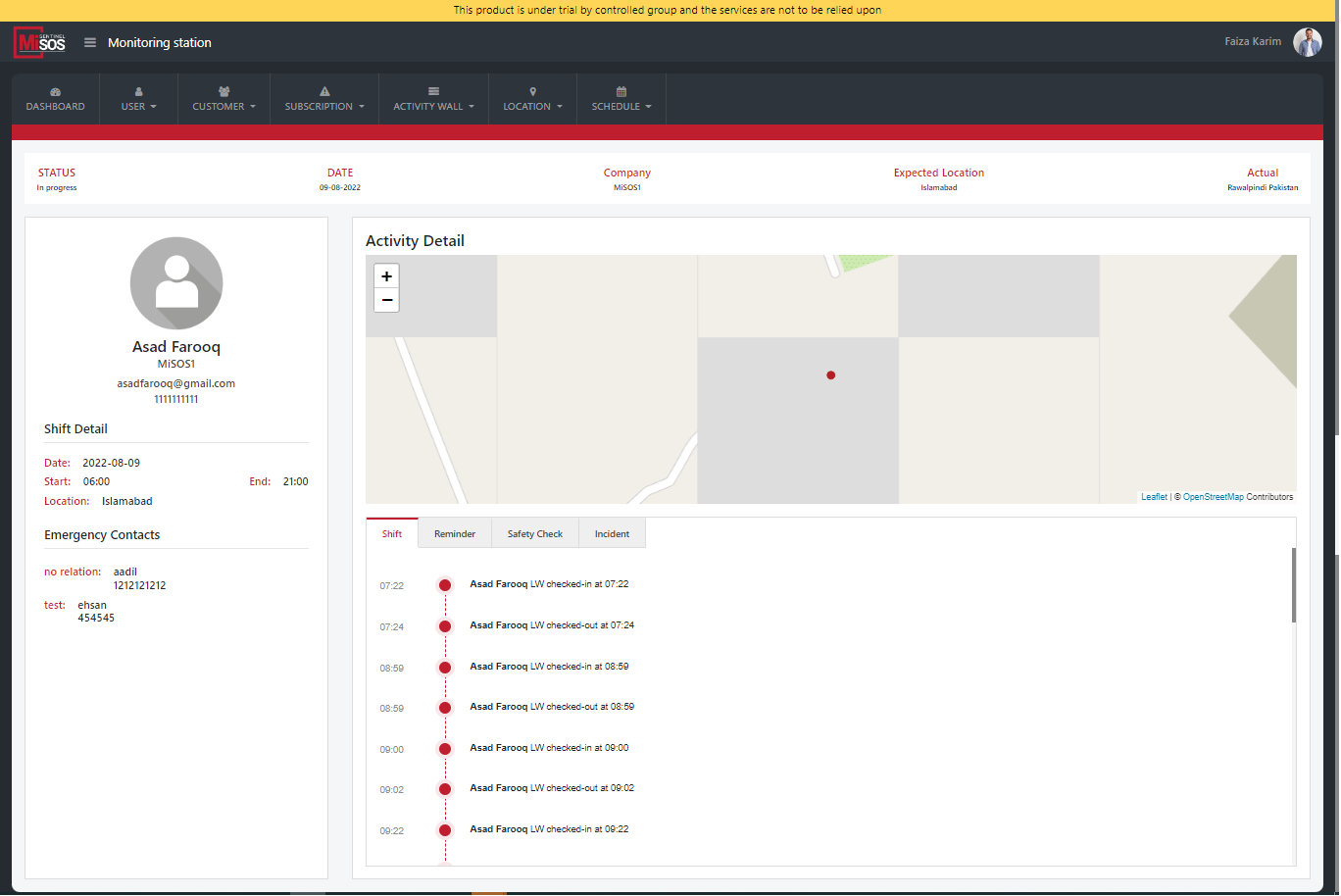
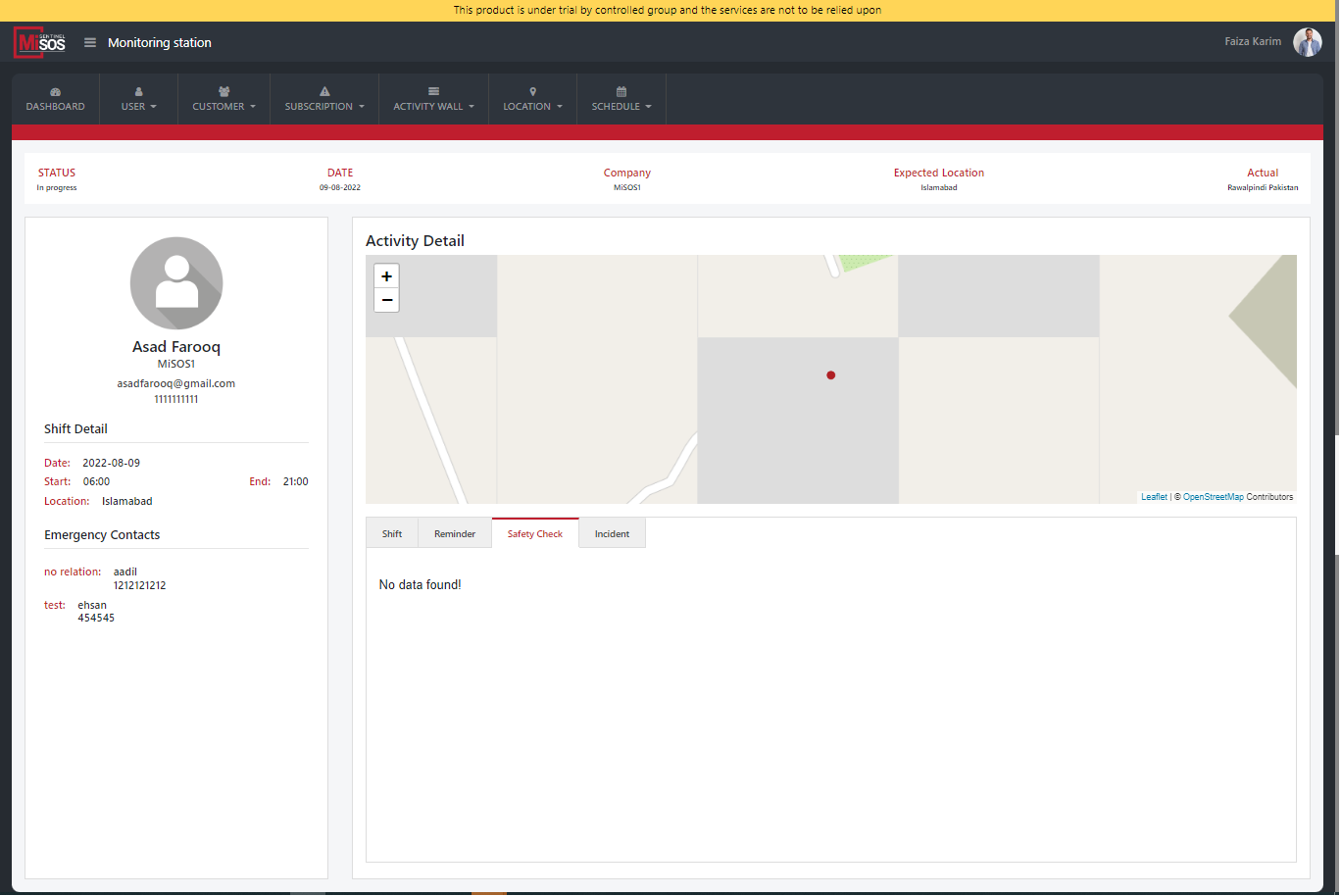
On the detail page, a particular employee’s expected location as well as the actual location, company’s name, date, start and end time of the shift all is maintained in the log. On the side, a short profile of the employee including shift details, emergency contact can be viewed. His/her shift extension time, what reminders had been sent or if any safety check were sent, all mandatory information is found in shift log.
Activation log
Finally, we have Activation log. To understand this you can say, we have a client named A. So, A signs up MiSOS and further asks her children to use the application for their safety (they’ll be A’s lone workers).
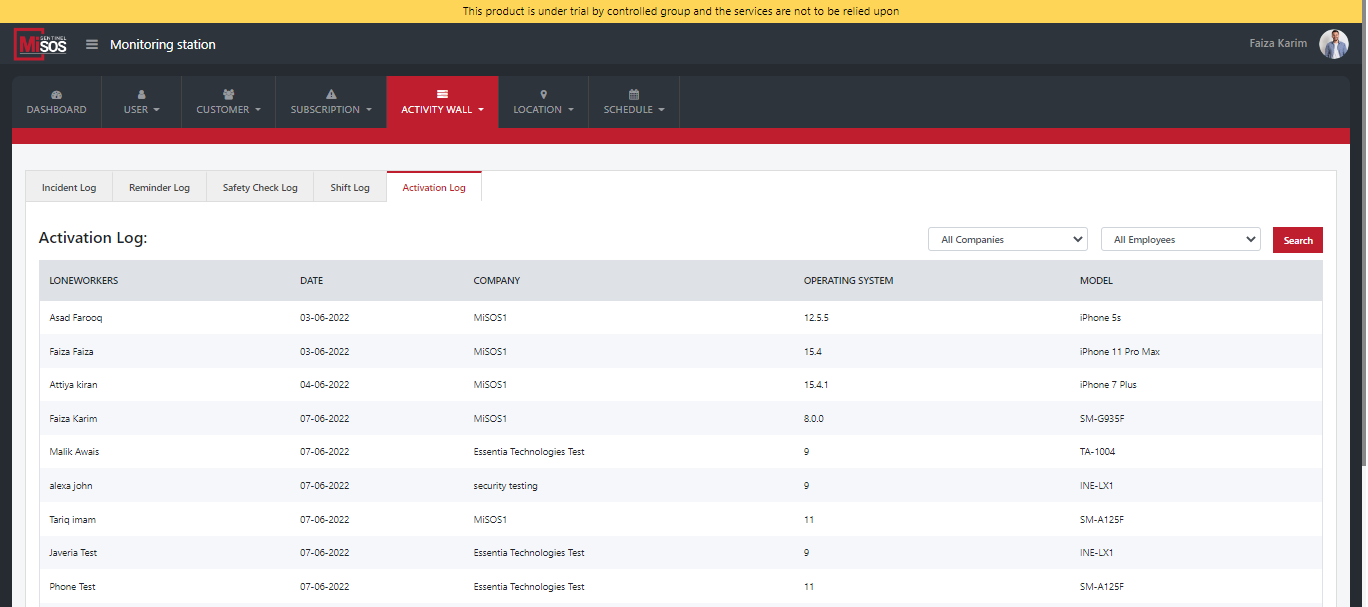
At our end, MiSOS would be notified from which device the application was activated where a log appears before us. Besides, a customer can activate the app from either his iPhone, laptop or android and that information is available on this log as well. In this manner, whoever activates the application the exact timing is entered in the log.
Activation log
Additionally, this can be sorted out by companies too; if the activation of an employee belonging to a certain company is to be viewed. The complete data of all clients is maintained in a form of listing on the MiSOS page termed as Activation Log.