User
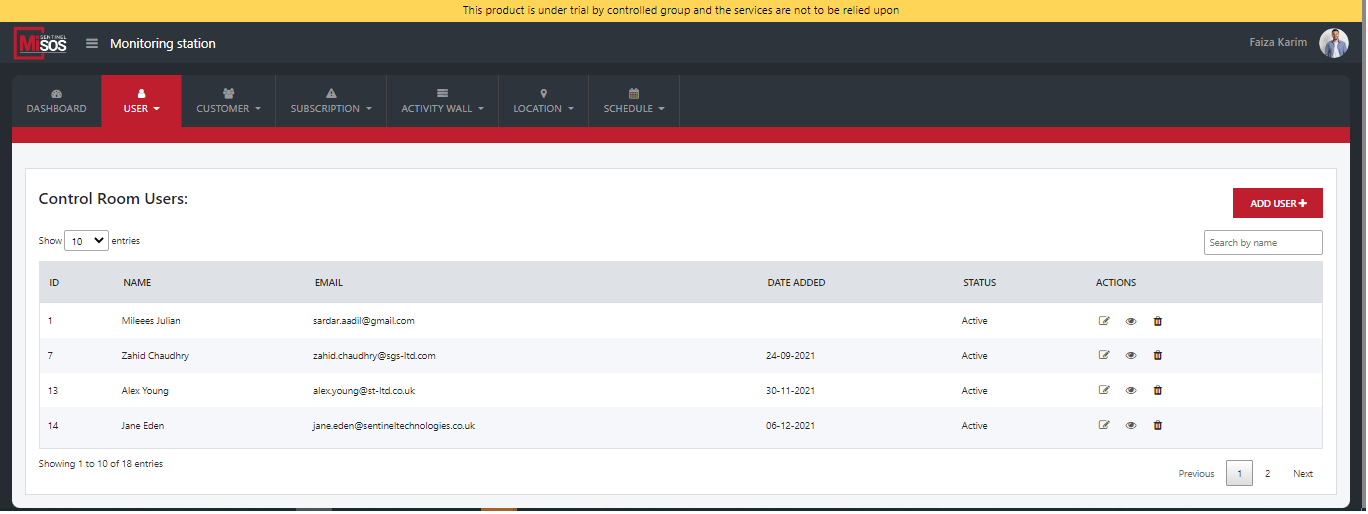
To view the current users, go to Top menu > User > Users. From there you can view all the current control room users. You can view “First name,” “Last name,” “Email address,” “Date added,” their “Status” and “Actions.” You can also “Search” for a user to view their details.
From “Actions” you can either
- Edit the user
- View them
- Delete them
Edit user
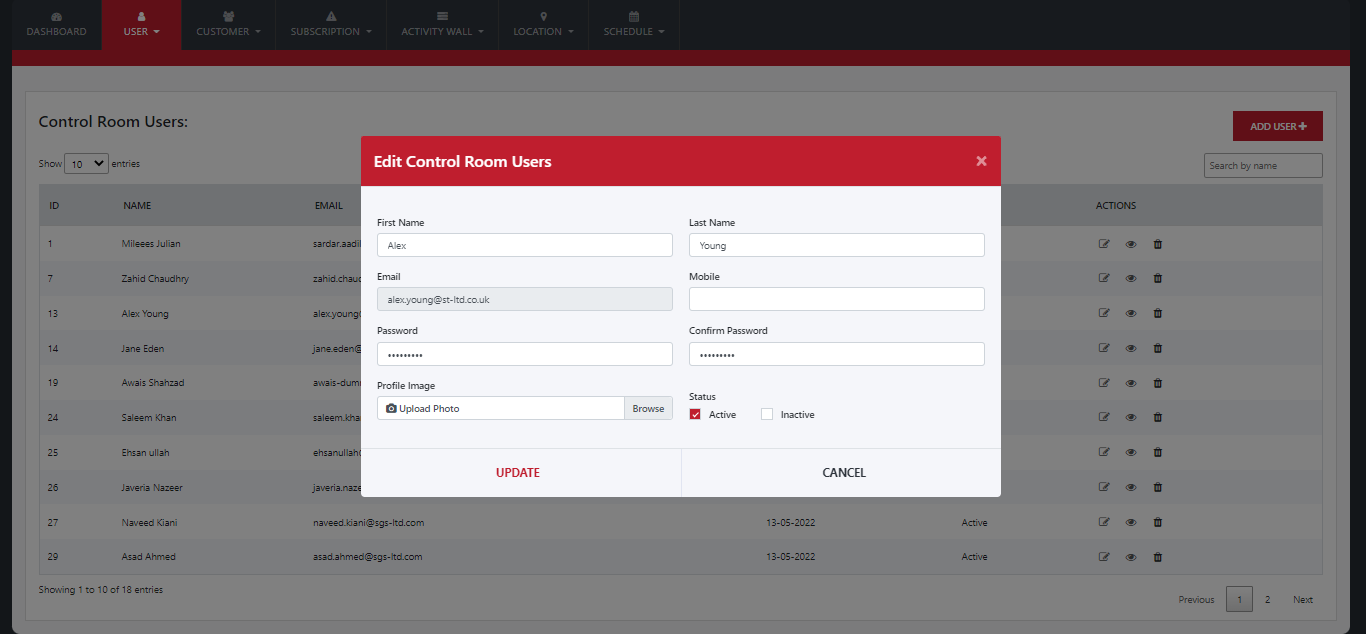
To edit a user, go to Top menu > User > Users. From there click on the yellow icon in “Actions.” A pop-up will appear on the screen. Once the pop-up has appeared you can edit the specific control room user you have selected. From there enter;
- First name
- Last name
- Email
- Mobile
- Password
- Confirm Password
- Upload a new profile photo or change the current one
- Select status from “Active” or “Inactive”
- Click on “Update” to make the desired changes
- Click on “Cancel” to undo any changes
Once you have entered all the details. You have then edited the selected control room user.
Once the pop-up has appeared you can edit the specific control room user you have selected. From there enter;
- First name
- Last name
- Email
- Mobile
- Password
- Confirm Password
- Upload a new profile photo or change the current one
- Select status from “Active” or “Inactive”
- Click on “Update” to make the desired changes
- Click on “Cancel” to undo any changes
Once you have entered all the details. You have then edited the selected control room user.
Add user
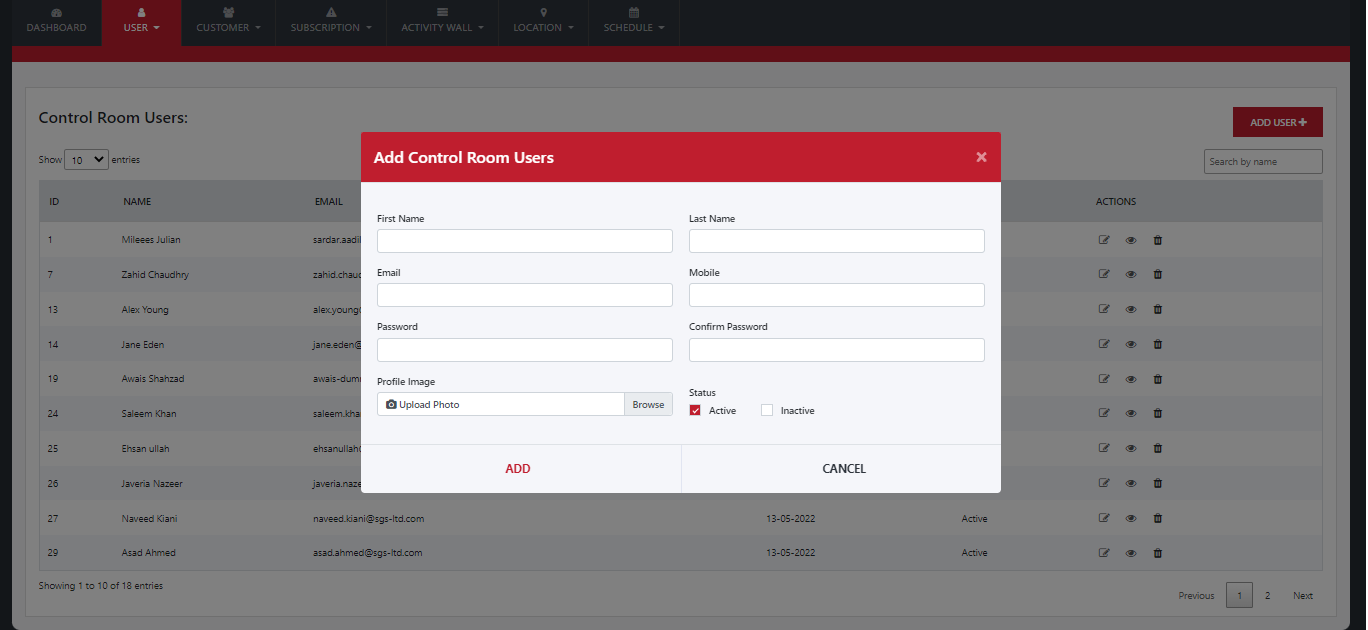
To add a user, go to Top Menu > User > Users. On the right side of the screen click on the red button “Add user.” A pop-up will appear, from there you can add a new user.
Once the pop-up has appeared you can add the details to add the desired control room user. From there, enter;
- First name
- Last name
- Email
- Mobile
- Password
- Confirm Password
- Upload a profile photo
- Select status from “Active” or “Inactive”
- Click on “Add” to add the control room user
- Click on “Cancel” to undo
Once you have entered all the details. You have then added a new control room user.
Delete user
Clicking on the remove icon will let you remove the users already created