Activity wall
Incident
Putting in sheer challenging work and months of sweat, we are presenting MiSOS, a-state-of-the-art software specifically designed for Lone workers.
If you are a lone worker,
We have 3 premium types of alerts:
Panic
Also termed as SOS, this type of alert when sent, sends the exact location, time, and the date promptly to the staff in the control room. For this SOS notification, all the employees must do is tap onto the panic button.
Man Down
In an event where an employee is badly hurt, with a quick tap on the app, it notifies the operator at the back end.
Shake
In case the cellular device is being shaken vigorously or if the worker is running, a notification is sent at once from that device of the lone worker.
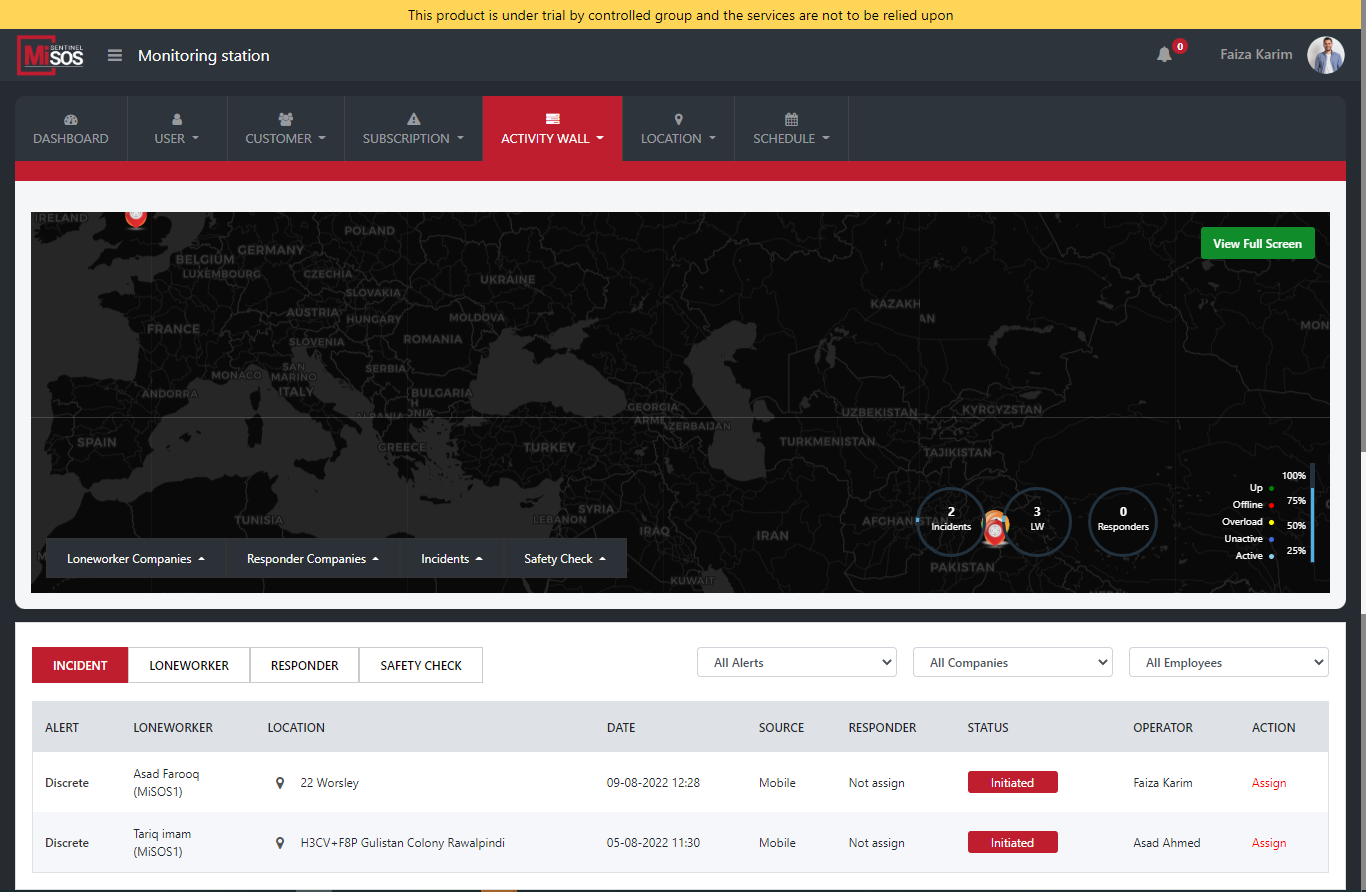
At our end, on the 24/7 checked Activity Wall, the operator invigilates the counters. Reports are made and our staff sees the counters rolling. As soon as a report is made by a lone worker, instantly, the operator responds. The status of the report is updated which is either started or closed. Next, the assigned staff connects with our listed responders to respond accordingly to the severity of the incident. Some of the responders at MiSOS are still under development.
In a yet another busy day of a lone worker, he/she reaches at the desired location. Upon arriving, the employee checks in using QR code. At our end in the control room, the entry of the check in is notified.
Incident Detail Page
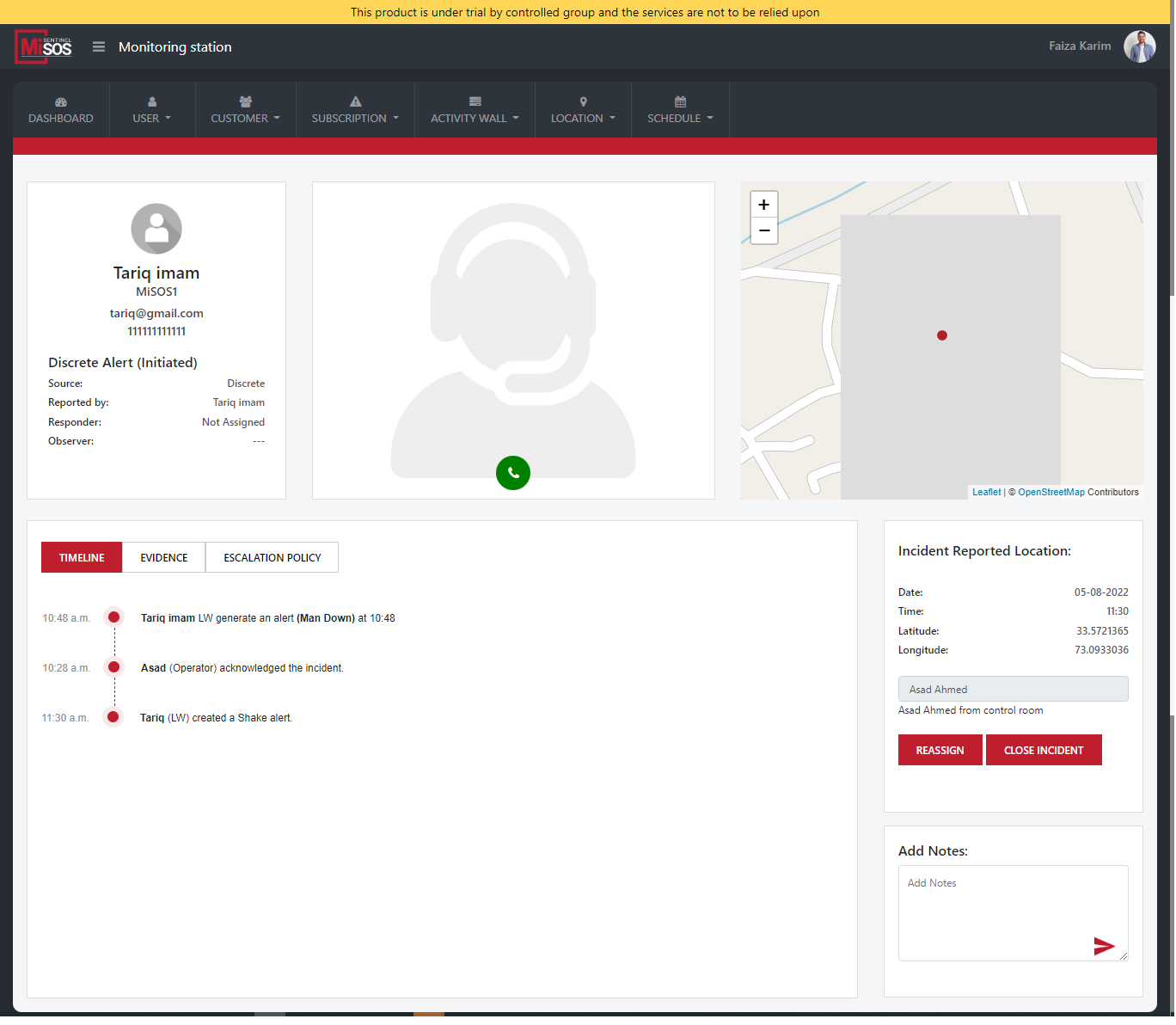
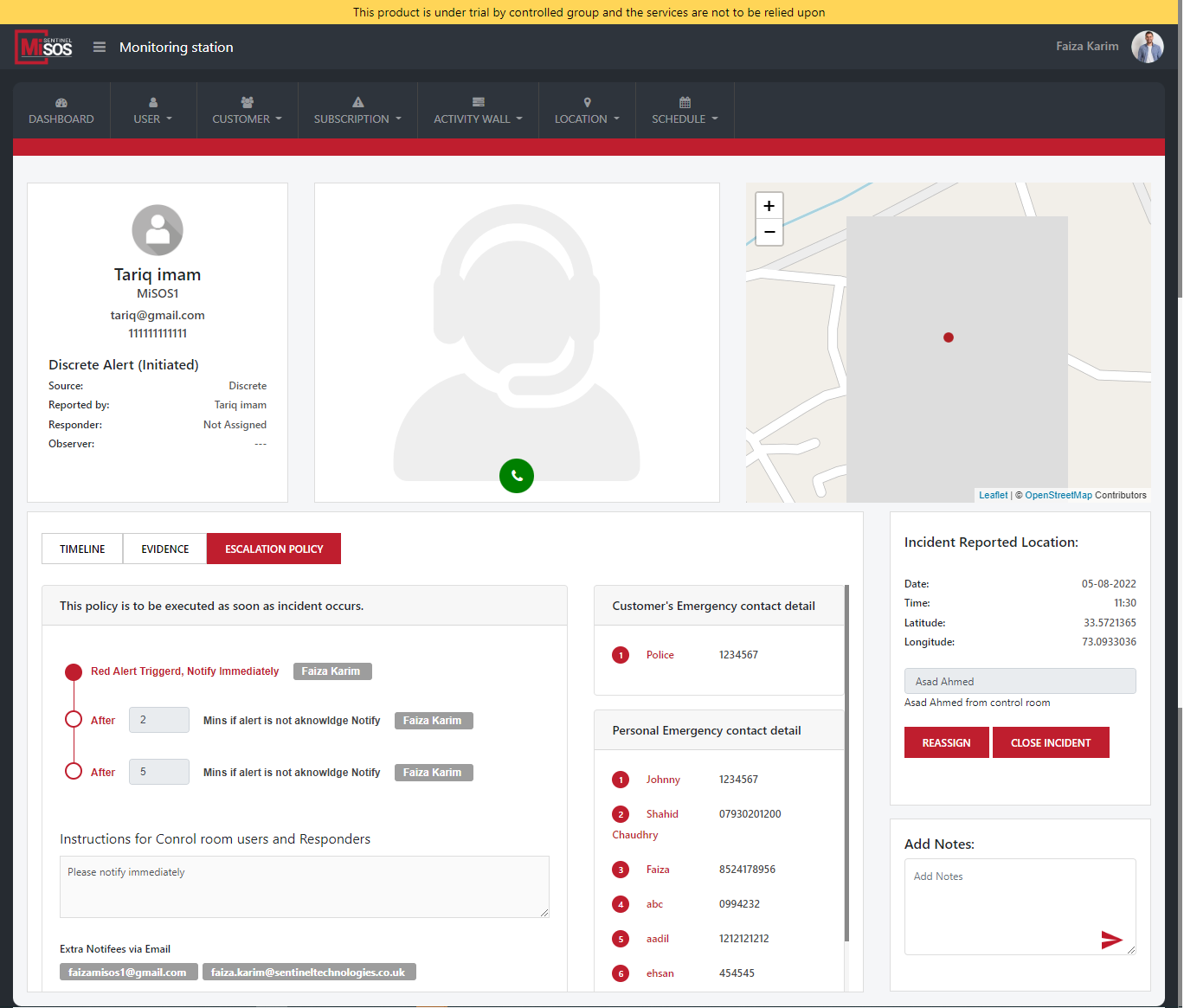
On this page, you will get to see multifarious list of incidents. On the left you will have the type - panic, man down or shake. When an incident is reported, the location pops up and the type is clearly mentioned.
A short profile of the lone worker is visible, who has generated that incident. The map on the right guides MiSOS about the coordinates. The green call button is distinguishable as to make any calls.
Next you see the timeline which shows any incidents that had been reported previously.
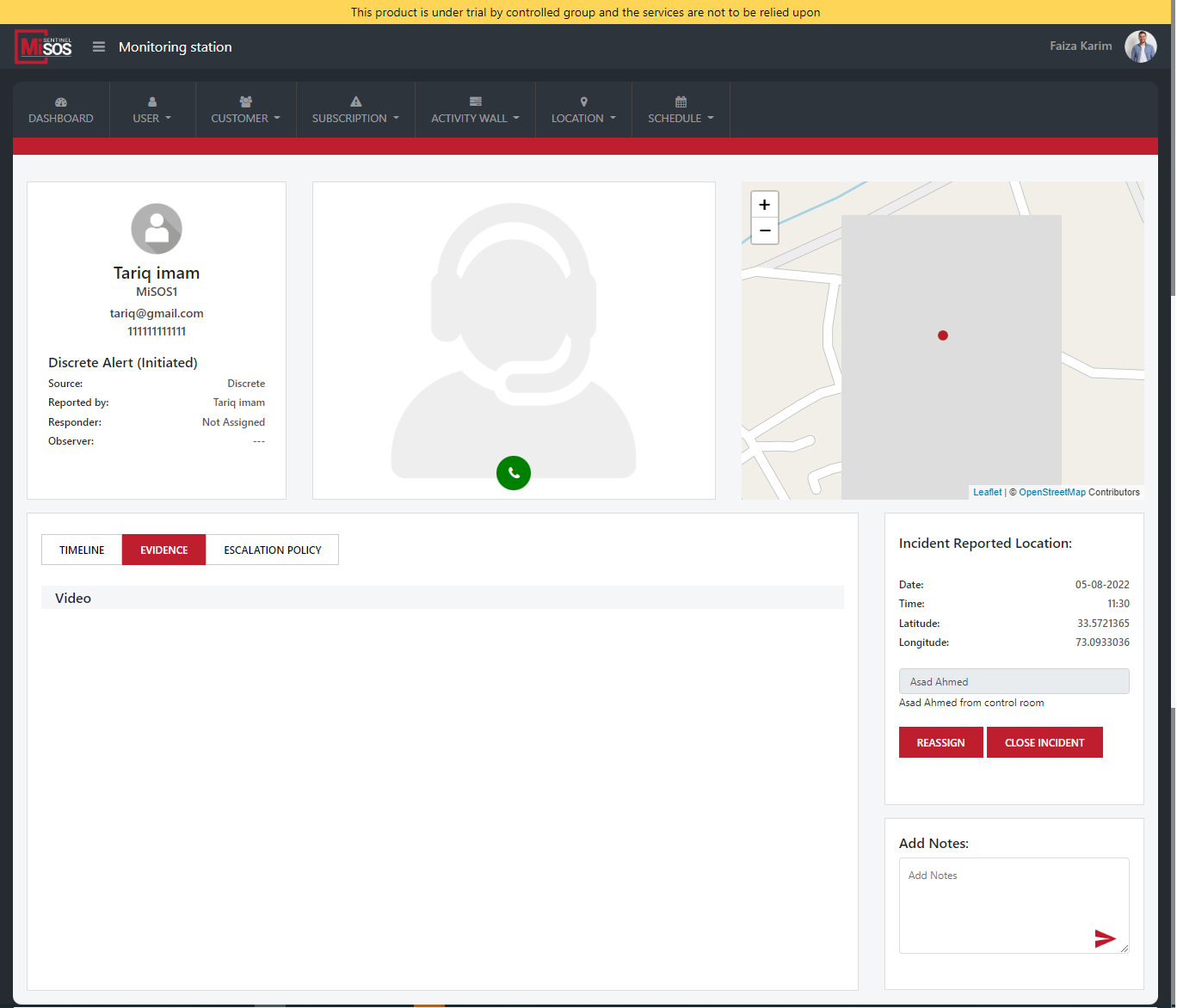
Simultaneously, at our end in the control room all calls are recorded as evidence.
At MiSOS, we have a strict escalation policy which we always abide by. Whenever an incident is created, a prompt email is generated to the entire team. This also include the personal emergency contact list of the lone worker. We must highlight the fact that it’s the customer (Lone worker) who always supply his SOS contact list, for any even if he/she faces an emergency.
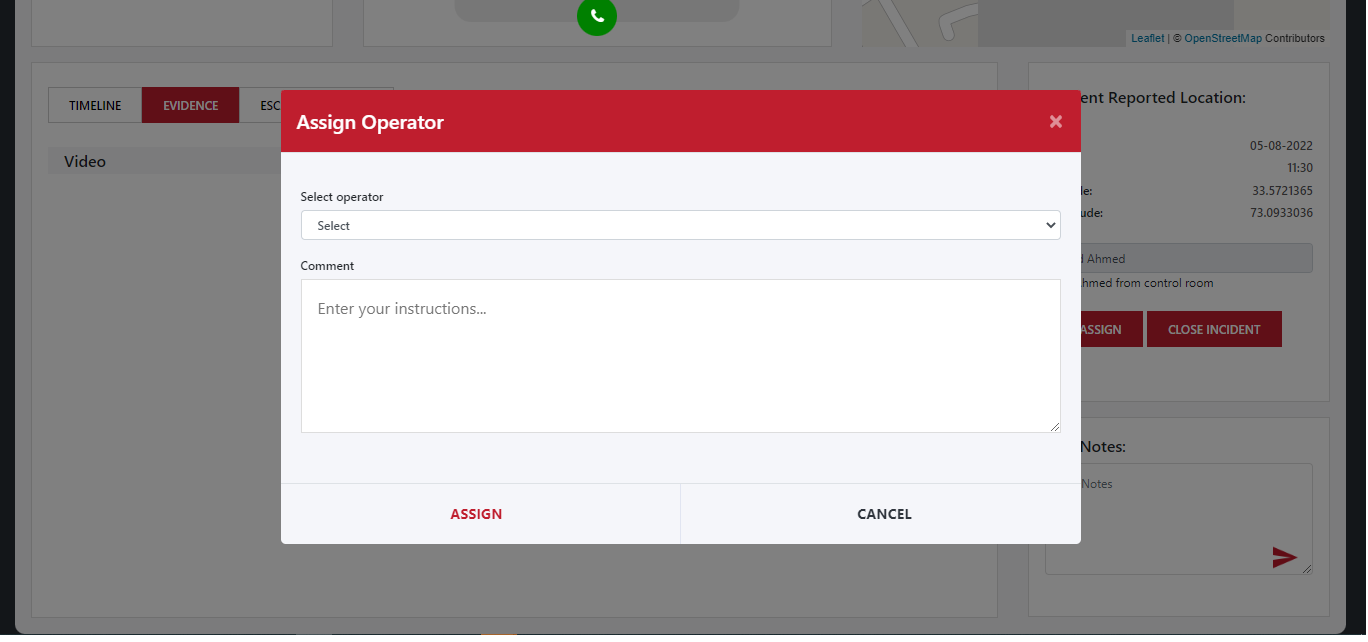
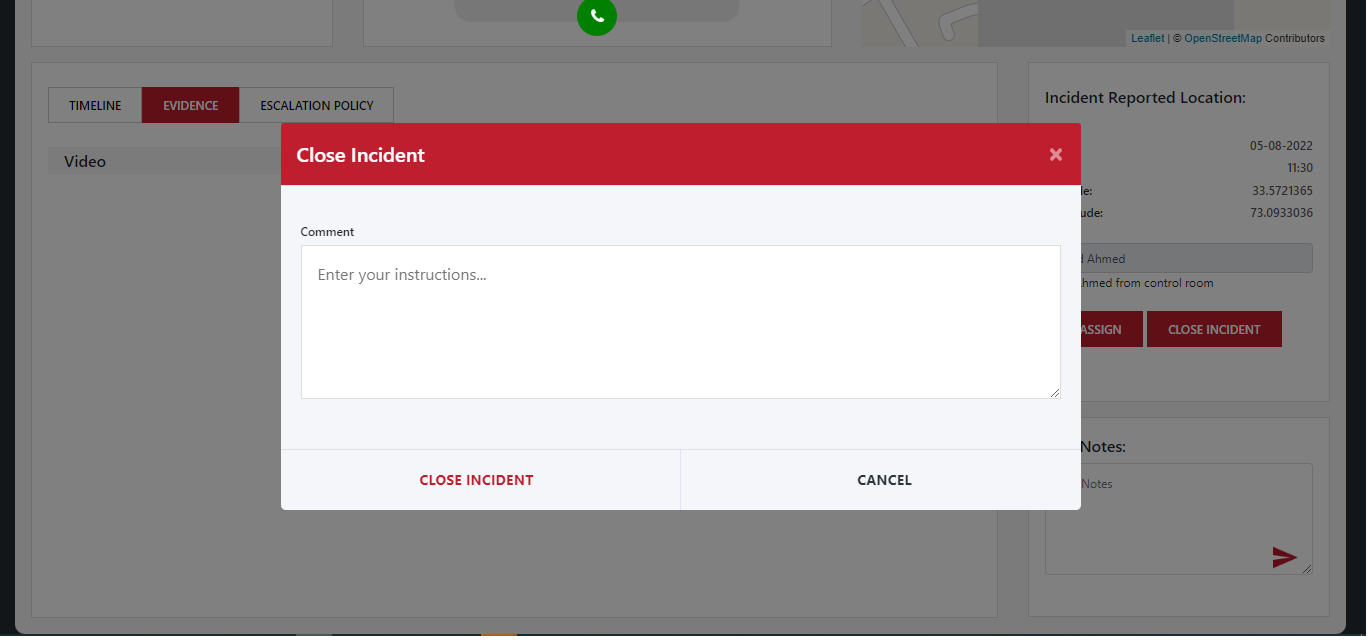
Precisely, all reported incidents will even show time, date, longitude, and latitude. Here, if you scroll down, you will also see two buttons namely “reassign” and “closed.” When an incident is generated and resolved accordingly, it is hence closed by the staff. If not, then the operator reassigns it to next the employee whose shift is about to begin. Dutifully, the operator writes down the status and plan notifying the respective operator.
At the very last, you will see “Add Notes” Column on this page. You can message directly, any time of the day or night for all queries as MiSOS is absolutely and simply a tap away!
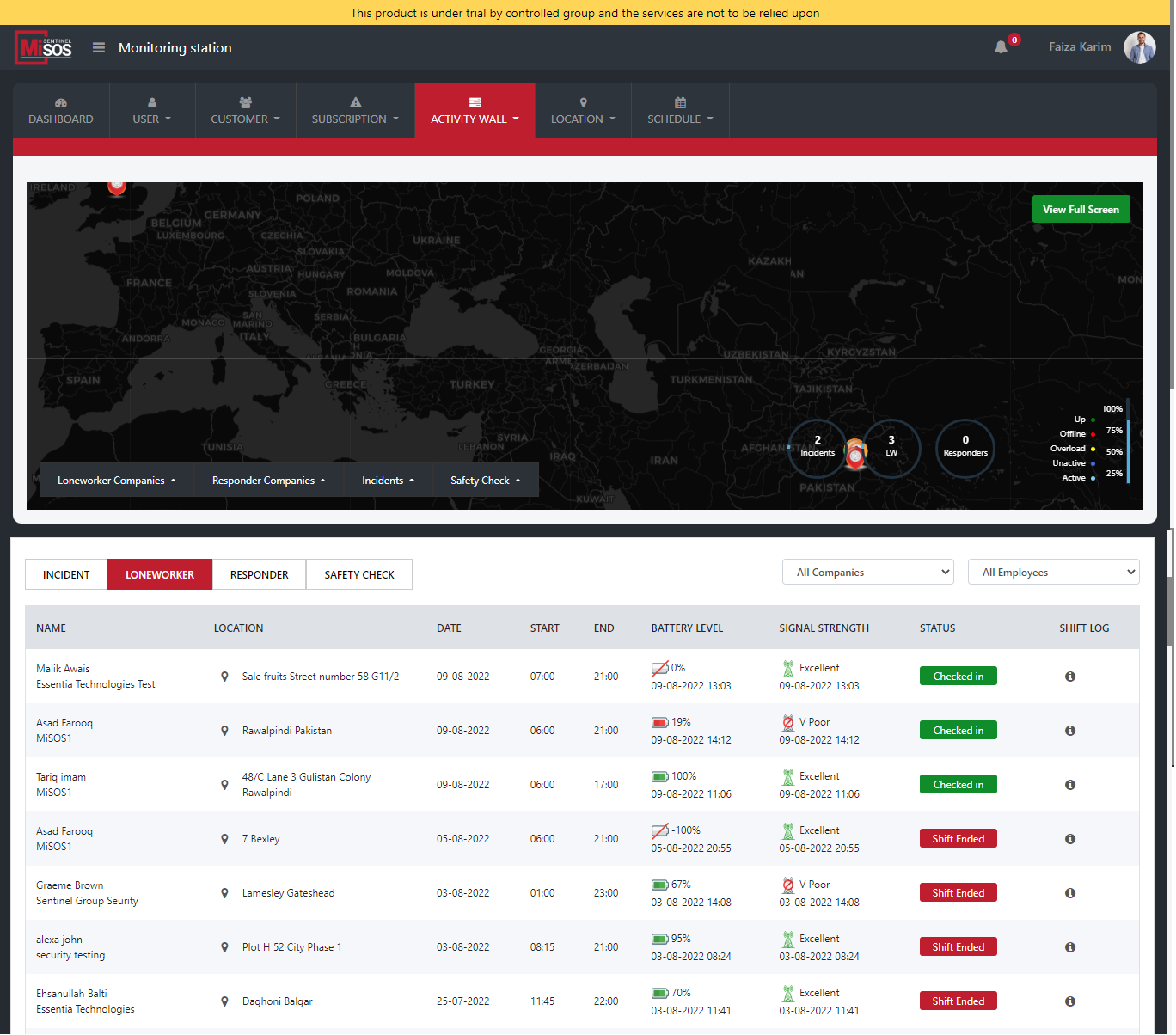
Lone Worker - admin portal’s end as well as opening mobile application In the admin portal, on the activity wall, there are 4 tabs namely incident, lone worker, responder, and safety check.
Lone worker
These are the employees present at their respective sites performing their assigned duties.
Here, a table is shown which highlights their name, location, date, check in time as well as signing off time. Incredibly, you will also see a worker’s battery life, status, and safety lock because MiSOS truly gives attention to minor details.
When a lone worker would open his mobile application, he/she would tap on the icon start. As soon as he/she taps, at our end at MiSOS, instantly their name will be highlighted along with his/Her correct location, date, and battery percentage.
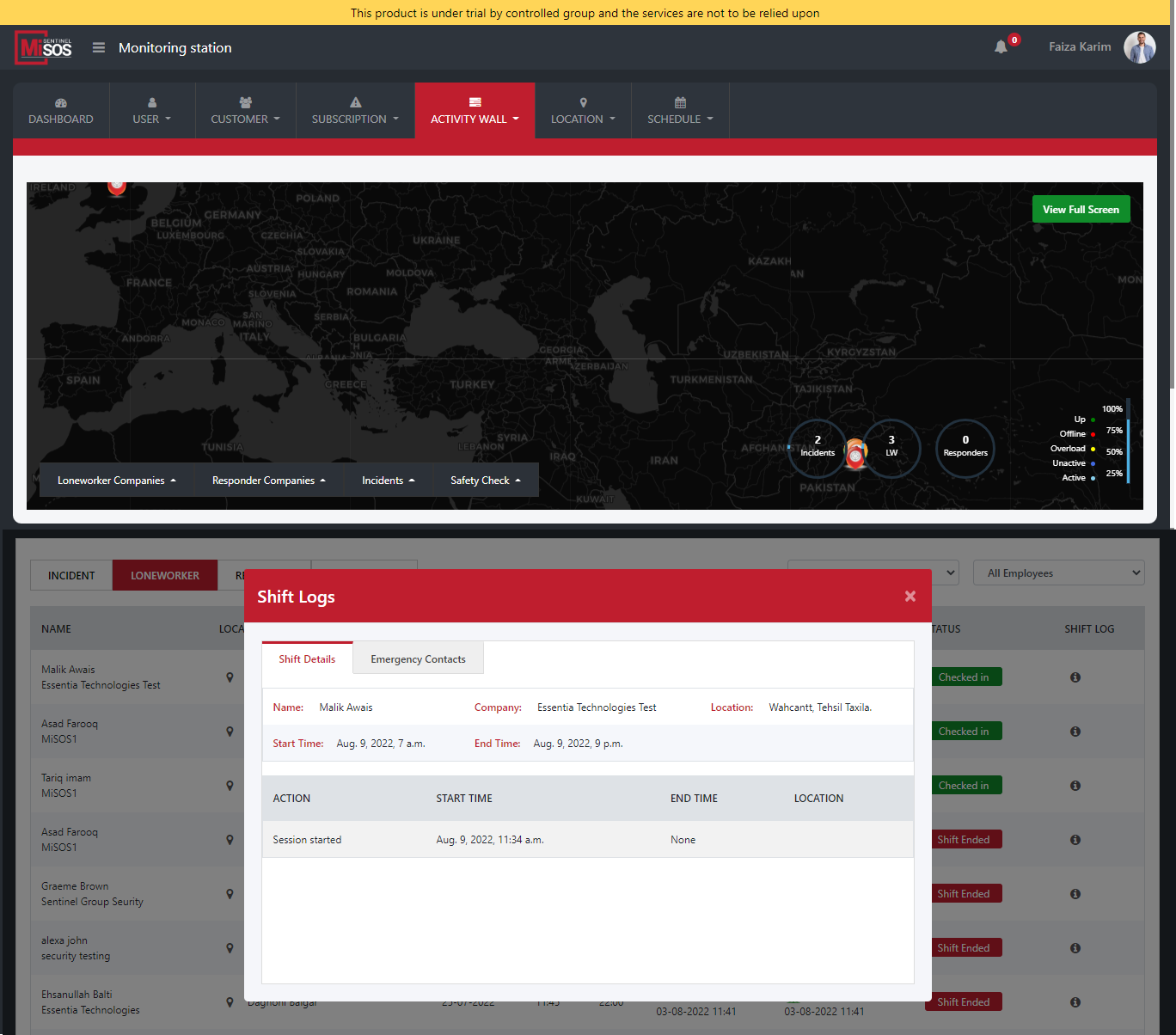
Next, if any lone worker chooses to sign off or take a break, thereby taps on the stop icon, then signs in again after a while, he/she can carry out this activity for many times if needed. The admin may check the shift log and see the routine activity of the employee.
Shift Log
A complete log of one shift of a lone worker can be opened by the operator. Here, the emergency contact list (of the lone worker) provided by the lone worker themselves are also added and can be seen by our operator. In event of a mishap, the respective emergency contact person would be notified in a moment.
Safety Check
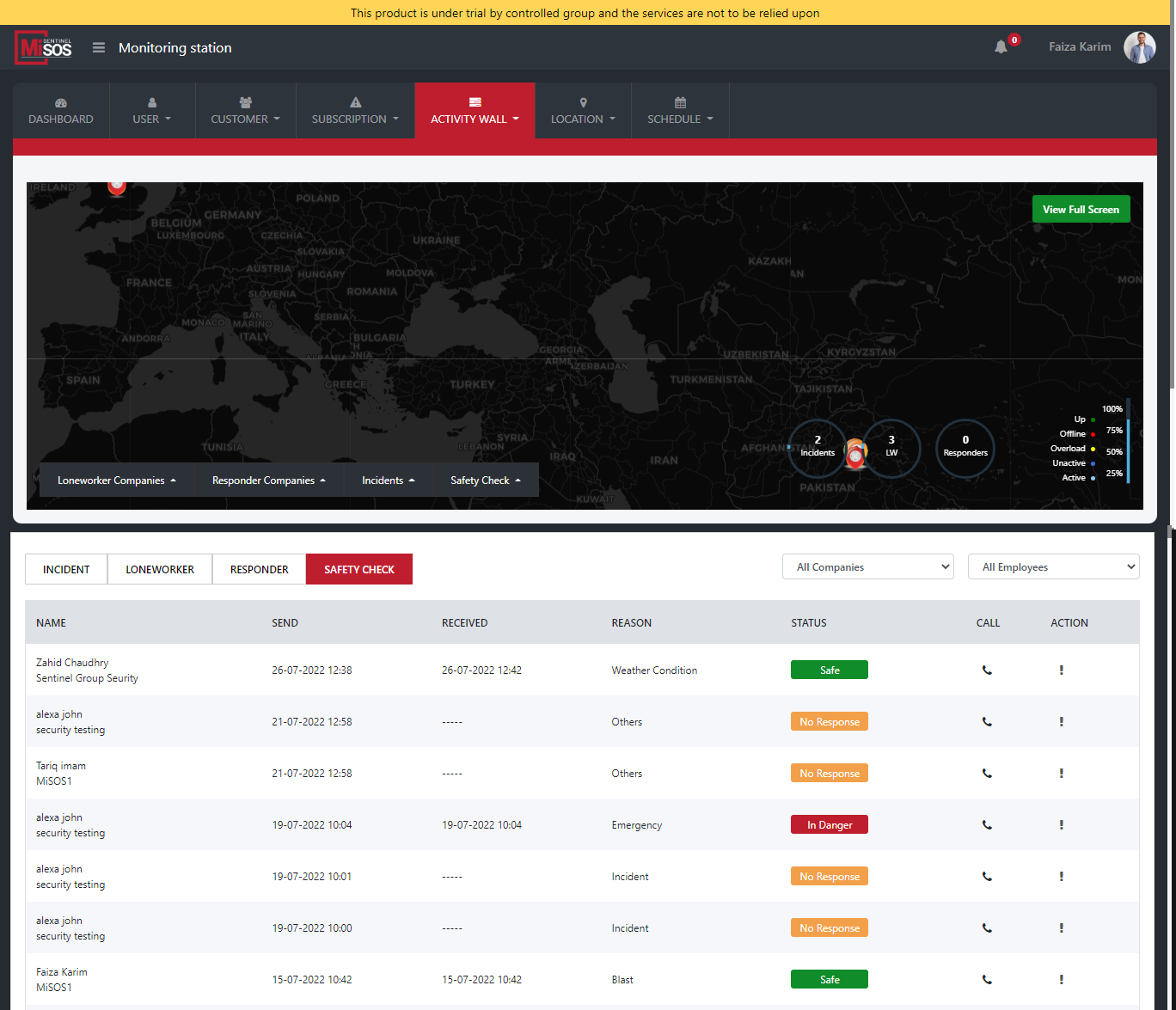
MiSOS is providing me with their service of security. This means if we tend to hear some news for example, a blast or of fire, instantly we will be sending you a “safety check” notification to find out about your well-being. Upon getting safety check notification, the lone worker must respond at once.
How MiSOS sends safety check?
At our end, the respective lone worker who is active at that moment is displayed on our screens. In case of a dire emergency, the lone worker would receive safety check (we will be selecting the reason to send that as well). As soon as it is sent, then on the application of the lone worker too, it is received in nanoseconds!
For the response, the lone worker has 2 options namely:-
Whichever possibility the lone worker selects, we are notified about it promptly. Any delays in response would have the status of “no response” at our end. When the response is received by the lone worker, it is later saved in the system.
What Happens When Lone Worker Is in Danger?
In case, the lone worker responded with “in danger” to the safety check notification, automatically an incident is reported. A report is entered in an event the lone worker could not report that incident himself. Next, the call is connected to MiSOS and if due to any reason the call is disconnected, our staff in the control room would call the employee themselves. Note that we can call the lone worker at any time!
Simultaneously, any time even after sending the safety check, if the lone worker tends to miss the notification by mistake and no response is registered in the system, then in this situation the lone worker would receive a call from MiSOS to verify the status. Next the staff would manually update the status by checking up on the employee and further the desired steps are executed from here.